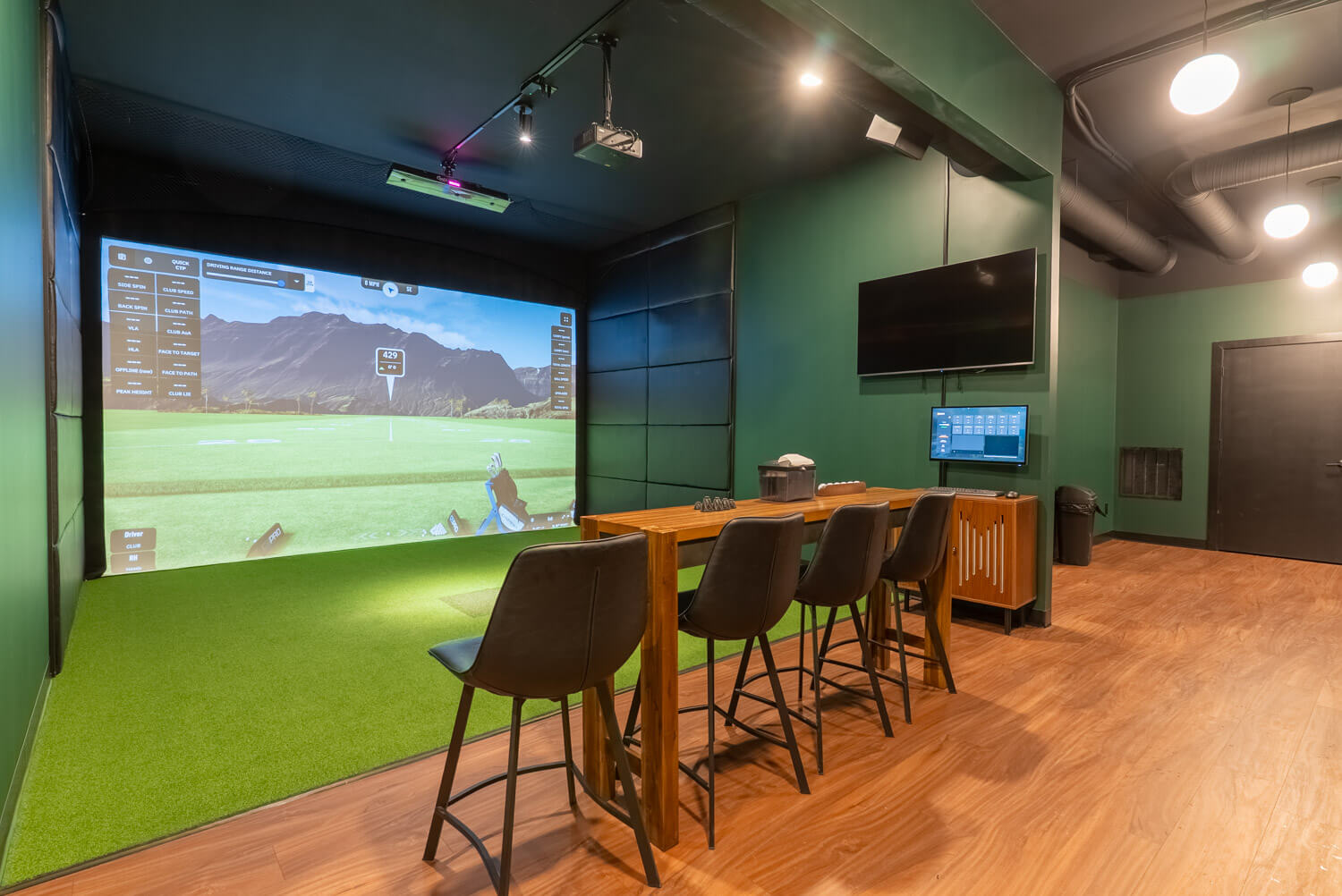


Golf simulators are one of the most fun (and effective) ways to play and practice year-round. Whether you’re brand new to indoor golf or you’ve only tried a simulator once, this guide will walk you through how to use a golf simulator step-by-step — from check-in to your final putt. You’ll learn what to bring, how the simulator tracks your shots, how to choose a course, and how to get the best results from your session.
What Is a Golf Simulator?
A golf simulator is an indoor system that lets you hit real golf balls into a screen while sensors and cameras track your swing and ball flight. The simulator calculates shot distance, direction, spin, launch angle, and more, then displays your results on-screen. Many simulators allow you to play full rounds on famous courses or use practice modes to work on specific parts of your game.
What to Bring to an Indoor Golf Simulator
If it’s your first time, don’t overthink it. Most players bring:
- Golf clubs (your own set, or use house clubs if available)
- Golf shoes (optional — clean indoor shoes often work too)
- A glove (recommended for comfort and grip)
- Comfortable clothing that lets you swing freely
Tip: If you’re coming with friends, one set of clubs can work for a casual session, but multiple sets helps keep the pace moving.
Step-by-Step: How to Use a Golf Simulator
1) Check In and Get Set Up
When you arrive, you’ll check in and head to your simulator bay. Staff can help you get started if you’re new. You’ll usually be asked for the number of players and whether you want to play a round or practice.
2) Create Players and Choose Settings
Most simulator software lets you add each player, choose handedness (right or left), and select helpful settings like:
- Tee height (for driver shots)
- Gimme putt range (auto-count short putts to keep play moving)
- Mulligans (optional “do-over” shots for casual play)
- Skill level or handicap options (if available)
3) Choose a Course or Practice Mode
You can usually pick between two main options:
- Play a round: Choose a course and number of holes (9 or 18).
- Practice: Use a driving range, approach practice, or targeted drills (like wedges or irons).
If it’s your first time, 9 holes is a great starting point — especially with a group.
4) Place the Ball in the Hitting Area
The simulator has a hitting mat with a designated spot (or tee area) where the sensors can properly read the ball. Place the ball exactly where the system expects it — not too far forward or back — to ensure accurate tracking. For tee shots, you may use a rubber tee or adjustable tee height depending on the setup.
5) Take Your Shot (Then Watch the Data)
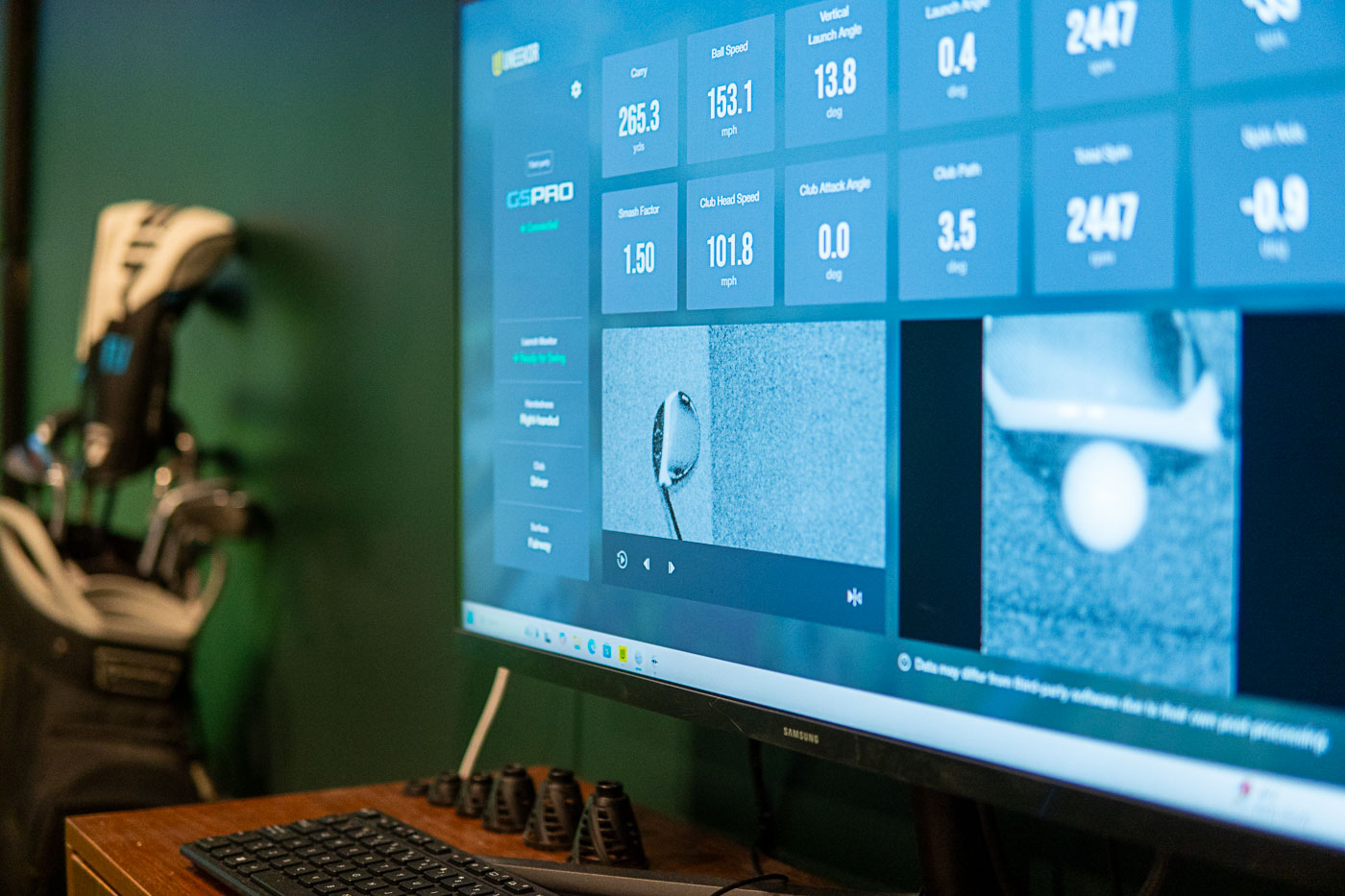
Swing like you normally would. After contact, the simulator will display results such as:
- Carry distance and total distance
- Ball speed
- Launch angle
- Spin rate (backspin and sidespin)
- Club path and face angle (on supported systems)
Don’t worry if the numbers feel unfamiliar — you’ll get comfortable quickly. If something looks “off,” staff can help adjust settings or confirm ball placement.
6) Move Through Each Shot Like a Real Round
After your drive, the simulator will place you where the ball landed and prompt your next shot. You’ll continue until the ball is holed — or until you reach the gimme range if that feature is enabled. To keep things smooth in a group, most people play “ready golf” (whoever is ready hits) rather than strict turn-taking.
7) Putting on a Golf Simulator
Putting can work differently depending on the system. Some simulators track putts directly on the mat, while others use a simplified approach to keep pace. Common putting options include:
- Auto-putt / gimme range: Short putts are counted automatically
- Manual putting: You putt on the mat and the system reads speed/direction
- One-putt / two-putt rules: The system estimates based on distance
How Many People Can Use a Golf Simulator?
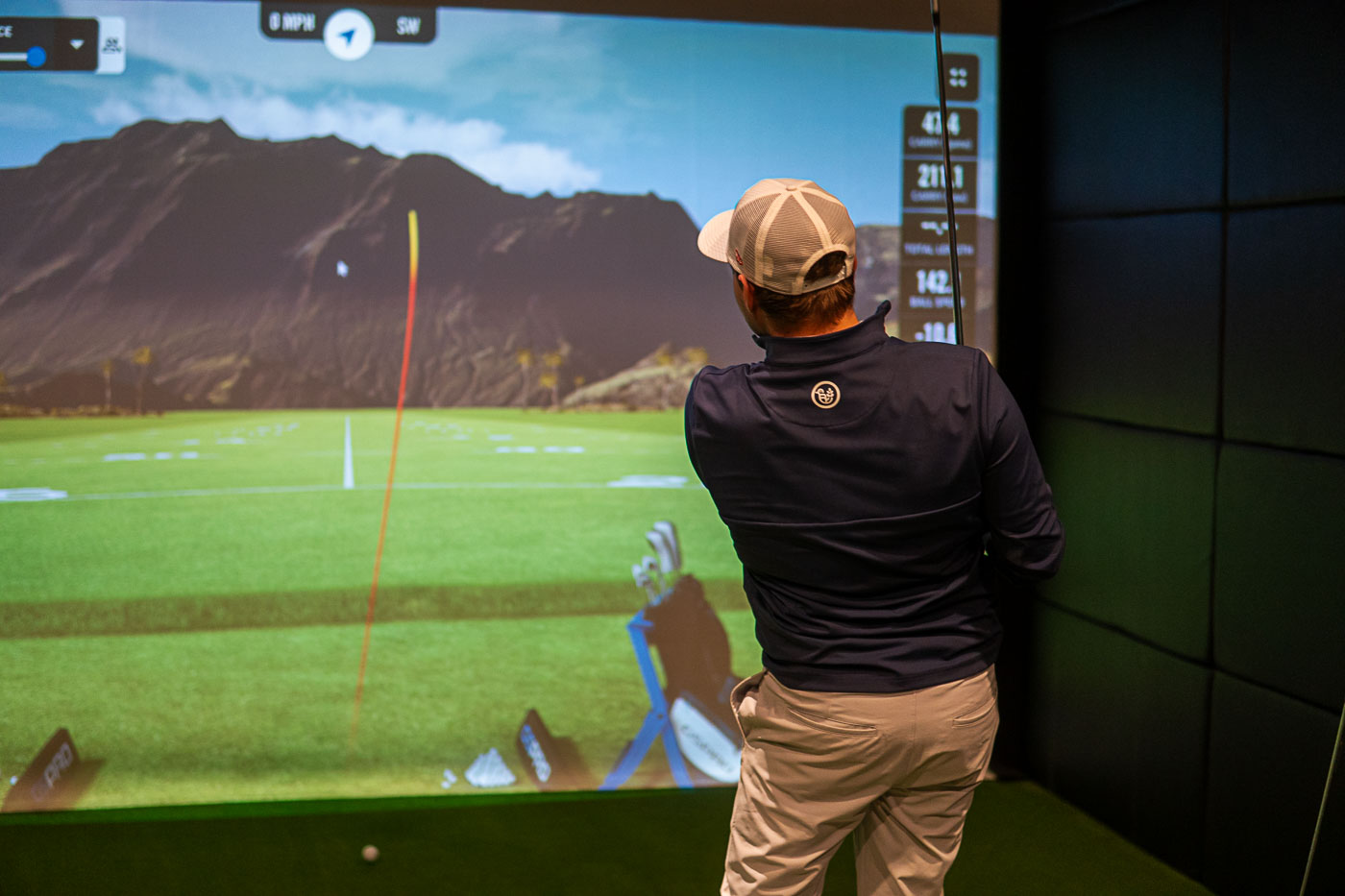
Most simulator bays are great for 1–4 players. You can play with more, but the pace is usually best with four or fewer — especially if you’re doing 18 holes. As a general rule:
- 1–2 players: Great for practice or a faster full round
- 3–4 players: Best for social rounds and friendly competition
- 5+ players: Consider 9 holes or scramble format to keep things moving
Tips to Get the Best Experience on a Golf Simulator
- Warm up first: Hit a few easy wedges and irons before swinging driver.
- Use the correct ball position: Place the ball on the marked spot every time.
- Choose a realistic tee box: Playing from the tips can slow things down.
- Try a scramble format: Great for groups with mixed skill levels.
- Pay attention to spin and launch: These are often more useful than total distance.
Common Questions About Golf Simulators (FAQ)
Do golf simulators use real golf balls?
Yes — most facilities use real golf balls, and you hit them into an impact screen.
Are golf simulators accurate?
Modern golf simulators can be very accurate, especially when the ball is placed correctly and the system is calibrated. Accuracy can vary by model and setup, but overall simulators are excellent for both practice and entertainment.
Can beginners use a golf simulator?
Absolutely. Golf simulators are beginner-friendly and a great way to learn because you get immediate feedback and can practice in a comfortable environment.
How long does it take to play 9 holes on a golf simulator?
It depends on skill level and group size, but many groups complete 9 holes in about 60–90 minutes.
Ready to Try an Indoor Golf Simulator?
Now that you know how to use a golf simulator, you’re ready to jump in and enjoy the experience. Whether your goal is to practice, play a full round, or just have a fun outing, indoor golf is one of the best ways to keep swinging all year.